Send files to TV
Screenshots
Send files to TV makes sharing media across your home network simple and fast. This application bridges the gap between your mobile device and your television screen. Most people struggle with cables or complex cloud uploads. This tool eliminates those hurdles. It creates a direct path for your data. You can move movies, photos, and documents in seconds.
The setup process remains straightforward. You only need a stable Wi-Fi connection. Both devices must share the same local network to communicate. Once connected, the app handles the technical heavy lifting. It uses a specialized protocol to ensure high-speed transfers. You will notice that speed does not drop even with large 4K video files.
Why you need Send files to TV
Many users want to enjoy their mobile content on a larger display. Watching a movie on a small handheld screen feels restrictive. Send files to TV solves this by allowing instant file migration. You do not need a computer to act as a middleman. The app bypasses the need for USB drives or external hard disks. This saves time and reduces physical clutter around your entertainment center.
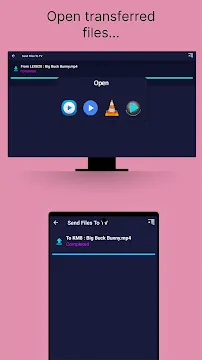
The application supports various file formats. Whether you have a high-resolution JPEG or a heavy MKV file, the transfer remains consistent. It utilizes your local network bandwidth. This means it does not consume your mobile data plan. It is a cost-effective way to manage your media library. You can clear up space on your phone while keeping your favorite content accessible on the big screen.
How to set up Send files to TV easily
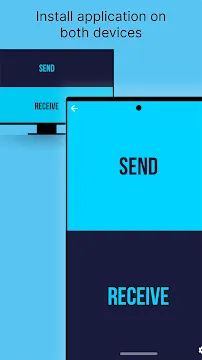
Starting with the application requires minimal effort. First, install the app on both your smartphone and your smart television. Ensure both gadgets link to the same Wi-Fi router. Open the interface on both ends simultaneously. Choose the “Receive” option on your TV. Select the “Send” option on your mobile device.
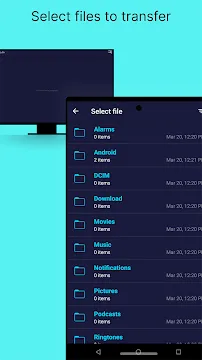
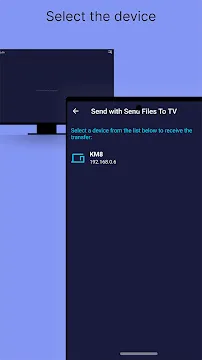
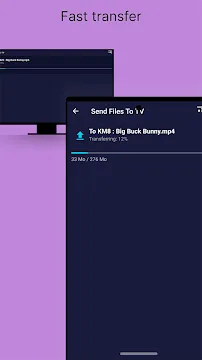
The app will scan your network for compatible hardware. Once the TV appears in the list, tap it to begin. You can browse your internal storage directly through the app interface. Pick the files you wish to move. The progress bar shows you exactly how much time remains. Most transfers finish before you can even grab a snack.
Benefits of using Send files to TV for media
Speed is the most significant advantage here. Traditional Bluetooth transfers are slow and often fail with large files. Send files to TV uses SFTV technology which is significantly faster. It maximizes the potential of your home router. You get a reliable connection that rarely drops. This reliability is crucial when moving large operating system updates or full-length feature films.
- Wireless convenience: No more searching for HDMI adapters or cables.
- Privacy: Files stay on your local network. They do not go to a third-party server.
- Multiple files: You can select entire folders to move at once.
- Simple UI: The design focuses on functionality rather than complex menus.
Optimizing your home network for the app
A strong connection improves the user experience. Place your router in a central location. Avoid physical obstacles like thick walls or metal cabinets. If possible, connect your TV via an Ethernet cable. This provides a “backbone” for the transfer while your phone stays on Wi-Fi. This hybrid setup often results in the highest possible transfer rates.
Check your router settings for “AP Isolation.” This feature must be turned off. If enabled, it prevents wireless devices from talking to each other. Once you disable it, your phone will see the TV immediately. Keeping your software updated also helps. Developers often release patches that improve discovery speeds and fix minor bugs.
Troubleshooting common connection issues
Sometimes your devices might not see each other. Do not panic if the list remains empty. Restart both the app and your Wi-Fi router. Often, a fresh handshake solves the problem. Ensure that no VPN is active on either device. A VPN masks your local IP address. This makes your phone appear as if it is in a different location.
Check your storage permissions. The app needs access to your files to move them. Go to your system settings and grant the necessary rights. If a transfer fails halfway, check your TV storage space. TVs often have limited internal memory. Clearing old cache or deleting unused apps can make room for new downloads.
Advanced features of Send files to TV
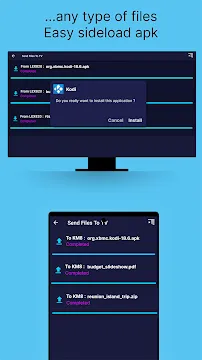
This tool does more than just move photos. It handles APK files with ease. This allows you to sideload applications that are not available in the standard TV store. It acts as a bridge for developers and power users alike. You can manage your TV’s file system directly from your palm.
The app automatically detects the best transfer path. If your hardware supports 5GHz Wi-Fi, it will utilize that higher frequency. This reduces interference from other household electronics. The result is a smooth, stutter-free experience. You can even use the app as a basic file manager to organize your TV’s storage remotely.
Conclusion
Send files to TV changes how we interact with our home electronics. It removes the frustration of “walled gardens” and proprietary software limits. By focusing on simplicity, it makes file sharing accessible to everyone. You do not need to be a tech expert to master it. The app provides a fast, secure, and wireless way to move content. It respects your privacy by keeping data local. If you want to maximize your smart TV’s potential, this tool is an essential addition to your collection. It turns your television into a truly integrated part of your mobile ecosystem.